



External Assessments
Face-to-Face Invigilation (Without E-Proctoring)
Remote Invigilation (With E-Proctoring)
Face-to-face invigilation
Guidance for learners sitting our external assessments without eProctoring.
Before the assessment starts
Once you are sitting in the assessment room
During the assessment
Once you’ve completed the assessment
Remote invigilation
Guidance for learners sitting our external assessments with online invigilation
Getting started
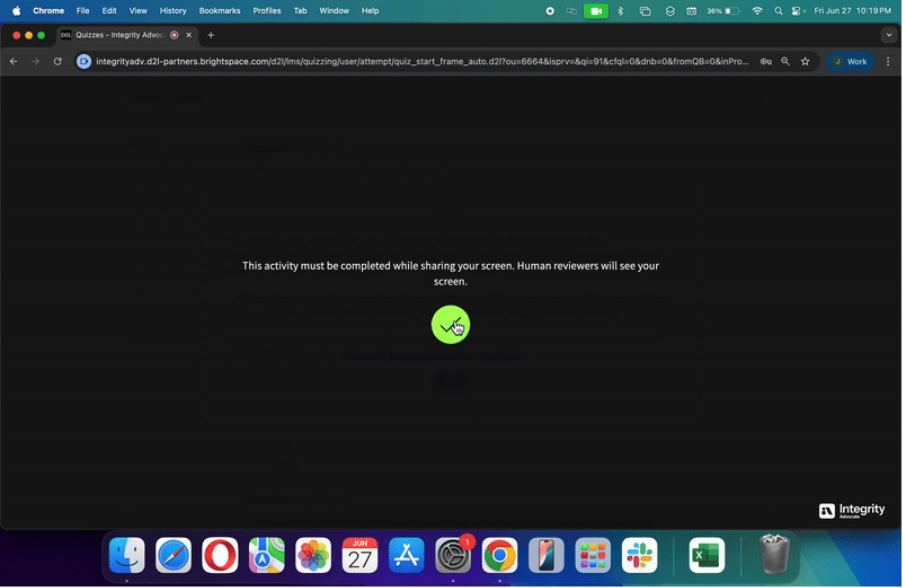
Our remote invigilation is designed to be seamless, privacy-conscious and non-invasive. There’s no plug-in to install, or separate app to download, everything runs in your browser. Assessment decisions are reviewed by human reviewers, not automated systems.
Getting started with Integrity Advocate
System requirements
We use Integrity Advocate to deliver remote invigilation. You will need the following to successfully complete your assessment:
Click to view all you need:
Two days before your assessment
As soon as your training provider has booked the assessment, you will receive an email from awards.donotreply@yawards.co.uk with a link to complete your system check. If you do not receive the email, please check your junk/spam folder.
It is strongly advised that you complete the system check at least 48 hours before your assessment so that any issues can be resolved in time.
The system check must be completed before your scheduled assessment time, if you do not complete this you won’t be able to sit the assessment. It cannot be completed once your exam start time has passed.
Click to view all you need:
Preparing your environment
On your assessment day you will need to ensure your environment meets the following requirements:
Click to view all you need:
Starting the assessment
Once you are ready to start your assessment, follow the on-screen guidance. You will need to have the following ready and nearby:
Click to view all you need:
During the assessment
During the assessment you should remain focused on the screen and avoid looking away. Continually looking away from the screen could be a sign that you’re looking for answers elsewhere and will invalidate your assessment.
Other behaviours that will invalidate your assessment include:
Click to view all you need:
Ending the assessment
Once you’ve completed the assessment you can review your answers by Once you’ve completed the assessment you can review your answers using the on-screen navigation (for example, the coloured question numbers down the side of the screen). Answered questions will be highlighted.
Once you’re satisfied with your responses, click the end exam button to end your assessment. You’ll receive on-screen confirmation that you’ve finished, and you can then close the browser tab. The recording ends automatically when you close the assessment window.
Results
Your training provider will be able to confirm your result 48 hours after your exam has finished.
All results are subject to YMCA Awards quality assurance checks. If any suspicious activity is discovered, then this will be investigated by YMCA Awards in conjunction with your training provider and may result in your assessment being invalidated.